


Triangulate one segment to two segments
This function triangulates between one closed parent segment and two children using a union concept. The union concept can give you great flexibility in controlling the position of the line of bifurcation. The children may either be closed segments or single points. With the BIFURCATE UNION function you have the option to join all of the parent segment with both children or split the parent segment up and join a portion of it up with each segment.
To run this function: Choose Solids > Triangulate > One segment to two segments, or...
Note: The Bifurcate Union function only allows bifurcation between a parent and two children, for bifurcation between a parent and many children see the Bifurcate One To Many function.
Note:For the Bifurcate Union function to give an optimal result there must be a reasonable geometric match between the child segments and the portions of the parent segment to which they are to be triangulated. The function may also give a sub-optimal result if a bifurcation branch is at too great an angle to the parent segment.
Note:The results produced by the Bifurcate Union function depend on the particular value of the triangulate stitch algorithm you are using (this may be 0, 1, 2 or 3). If you do not obtain satisfactory results with the current stitch algorithm you can change it using the Toggle Stitch Algorithm function.
Hint:While using the Bifurcate Union function, if you have problems selecting points and/or segments near triangles that are drawn on the screen, it may be because the triangles are being selected in preference to the points themselves. The symptoms of this problem are the function cancelling unexpectedly or an inability to select the correct point. If this occurs you are advised to remove the triangles from the screen using the Edges Off and Faces Off functions then perform the function as normal (obviously you must have the strings drawn on the screen to be able to select them), then recall the triangles to the screen using the Faces On and Edges On functions. With the triangles temporarily removed from the screen you will find that point selection becomes much easier.
Diagrams (a), (b) and (c) below show how the final trisolation is formed if you choose not to break the parent segment:
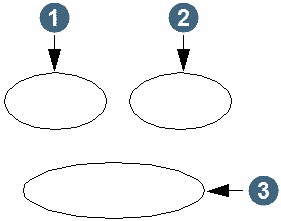
Diagram (a) Parent segment and two child segments
|
1. 1st child segment 2. 2nd child segment 3. parent segment |
Diagram (b) Formation of two intermediate sub trisolations for 'no split' case
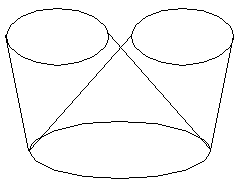
Diagram (c) Union of sub trisolations to form resultant trisolation for 'no split' case
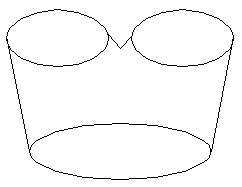
As can be seen from diagram (b), when the parent and the two children have been chosen two intermediate trisolations are created and unioned to give the result.
Diagram (a) and diagrams (d) and (e) below show how the result trisolation is formed if you do choose to break the parent segment.
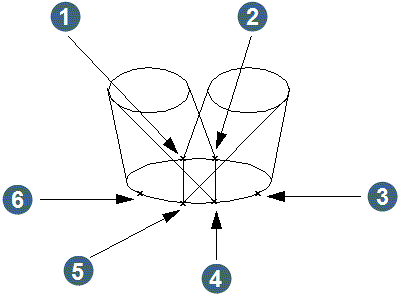
Diagram (d) Splitting the parent segment and formation of two intermediate sub trisolations for 'split' case
|
1. 2nd break point for second child 2. 2nd break point for first child 3. point to define which part of the parent segment is to join with the second child 4. 1st breakpoint for first child 5. 1st breakpoint for second child 6. point to define which part of the parent segment is to join with the first child |
Diagram (e) Union of two intermediate sub trisolations for 'split' case
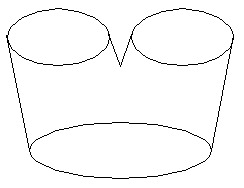
As can be seen from diagram (d), you are required to select two break points and a third mark point on the parent segment for each child. The two break points divide the parent segment into two portions and the third point defines which of the two portions you wish to join to the current child. When the splits have been completed two intermediate trisolations are created and unioned to form the result trisolation.
You will find that by splitting the parent segment in different ways you will be able to control the position of the line of bifurcation.
Note:The Bifurcate Union function forms a true boolean union between the two sub trisolations, you may find you may wish to make the result trisolation more geologically representative by fine tuning using the splitting option. Also when you select break points and mark points on the segments the function will snap to the closest point on the segment to the point you have selected and display a temporary marker. To facilitate your choice of points you are therefore advised to use the DRAW Markers function to mark all the points in the strings.
This function could be used, for example, to model bifurcating ore bodies.
Function
Display only. The name of the function being executed.
Layer name
Display only. The name of the active layer is displayed. The active layer is the only layer you are able to modify.
Object
Enter the object number of the 3DM to be created.
Trisolation
Enter the trisolation number of the 3DM to be created.
Complete the DEFINE THE TRISOLATION TO BE CREATED form and choose Apply to display the BIFURCATION OPTIONS form.
Do you wish to split the parent segment? (Y/N)
If you choose not to split the parent segment then each child will be joined to the whole of the parent segment. If you choose to split the parent segment then you can define a portion of the parent segment to join with each child. By having the option of splitting the parent segment you will find that you have a lot of flexibility in producing an accurate line of bifurcation for your model.
String number to store bifurcation points
The Bifurcation Union function will add a line of bifurcation points to your point data. Nominate the string number in which to store the new bifurcation points.
Complete the BIFURCATION OPTIONS form and choose Apply to begin selecting the parent segment and children.
If you chose 'Y' to Do you wish to split the parent segment? (Y/N) on the BIFURCATION OPTIONS form you will first be prompted for the break points on the parent segment. The following process will be followed if you chose 'N' to Do you wish to split the parent segment? (Y/N) on the BIFURCATION OPTIONS form.
The following prompt is displayed:
Select the parent segment
Position the pointer and select a point on the parent segment.
Selecting a point on the parent segment displays the FIRST CHILD SEGMENT OR POINT? form.
Is the first child a segment or a point? (S/P)
Choose whether the first child is a segment or a point.
Complete the FIRST CHILD SEGMENT OR POINT? form and choose Apply to display the prompt:
Select the first child
Position the pointer and select the first child.
Selecting the first child displays the SECOND CHILD SEGMENT OR POINT? form.
Is the second child a segment or a point? (S/P)
Choose whether the second child is a segment or a point.
Complete the SECOND CHILD SEGMENT OR POINT? form and choose Apply to display the prompt:
Select the second child
Position the pointer and select the second child.
The following process will be followed if you chose 'Y' as the answer to Do you wish to split the parent segment? (Y/N) on the BIFURCATION OPTIONS form.
The following prompt is displayed:
Select the first break point on the parent segment for the first child
Position the pointer and select the first break point on the parent segment for the first child.
Selecting this point causes the following prompt to be displayed:
Select the second break point on the parent segment for the first child
Position the pointer and select the second break point on the parent segment for the first child.
Selecting this point causes the following prompt to be displayed:
Select the portion of the parent segment to join with the first child
Position the pointer and select the portion of the parent segment to join with the first child.
Selecting this point displays the FIRST CHILD SEGMENT OR POINT? form.
Complete the FIRST CHILD SEGMENT OR POINT? form and choose Apply to display the prompt:
Select the first child
Position the pointer and select the first child.
Selecting the first child causes the following prompt to be displayed:
Select the first break point on the parent segment for the second child
Position the pointer and select the first break point on the parent segment for the second child.
Selecting this point causes the following prompt to be displayed:
Select the second break point on the parent segment for the second child
Position the pointer and select the second break point on the parent segment for the second child.
Selecting this point causes the following prompt to be displayed:
Select the portion of the parent segment to join with the second child
Position the pointer and select the portion of the parent segment to join with the second child.
Selecting this point displays the SECOND CHILD SEGMENT OR POINT? form.
Complete the SECOND CHILD SEGMENT OR POINT? form and choose Apply to display the prompt:
Select the second child
Position the pointer and select the second child.
Processing
The processing is as described via the diagrams earlier in this section.
Message
The following messages confirm which segments and/or points you have chosen.
Parent segment is segment aaa of string bbb
First child segment is segment aaa of string bbb
Second child segment is segment aaa of string bbb
First child is point x= aaa y= bbb z= ccc
Second child is point x= aaa y= bbb z= ccc
The following message appears when the calculations are commencing
Calculations are commencing - Please wait
Result
The result of this function is a set of triangles stored in the user specified trisolation and object number. The screen picture is updated automatically. The newly created trisolation is not saved to a file automatically, to do so you must use the Save File function.
Errors
Several checks are made concerning the validity of the selected points, segments and break points:
The points chosen must be on the same segment
Inconsistent parent segments chosen for splitting
Invalid segment
Invalid break of parent segment
Invalid choice of segments
Duplicate points on the first child segment
Duplicate points on the second child segment
Duplicate points on the parent segment