


Graphics modes
There are three different types of modes which affect graphics operations.
Add / Insert / Change modes
When you create points using certain functions, the points will be:
- added as new points using the current design string number, if MODE ADD is set
- inserted into a selected segment if MODE INSERT is set
- moved from the current position if MODE CHANGE is set
To set this mode:
Choose Create > Points, then select one of the following:
- Add point mode
- Insert point mode
- Change point mode
The functions for these menu commands are MODE ADD, MODE INSERT, and MODE CHANGE respectively. The default is MODE ADD.
Snap modes
When digitising, points can be created:
- at the pointer, if snap mode is set to Plane
- at the nearest point, if snap mode is set to Point
- at the nearest location on a line between two points, if snap mode is set to Line
- at the elevation of a DTM triangle, if snap mode is set to Triangle
- at the location determined by the virtual ruler and protractor settings, if snap mode is set to Drafting
To set this mode:
Select the arrow button on the Snap mode icon, then select one of the following:
- Plane
- Point
- Line
- Triangle
- Drafting
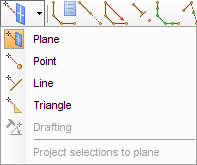
Before Surpac version 6.3, you had to exit the function you were using to change snap mode. From version 6.3 onwards you do not need to exit the function to change modes. You can change modes using the drop-down menu on the toolbar, or right-click in Graphics , and choose the new mode from the shortcut menu. The right-click shortcut menu also has icon buttons to undo, redo, close the segment, end the segment, digitise a new string, and change to DIGITISER MIDPOINT (if you are using DIGITISER DIGITISE) or DIGITISER DIGITISE (if you are using DIGITISER MIDPOINT). You can also use the following shortcut keys to change between modes:
- 1 - Plane
- 2 - Point
- 3 - Line
- 4 - Triangle
- 5 - Drafting
- CTRL and Z - Undo
- CTRL and Y - Redo
- 0 - DIGITISER CLOSE SEGMENT
- - (minus) - DIGITISER END SEGMENT
- + (plus) - DIGITISER NEXT STRING
- / (forward slash)- DIGITISER MIDPOINT
- . (period) - DIGITISER DIGITISE
The default is snap to plane.
Data-centric vs. Function-centric modes
The most efficient way of performing most graphical editing is to select some data first, then perform an operation on it. This is known as a data-centric operation.
There are several tools which allow you to perform data-centric operations, for example any of the Select tools.
In some cases, you must select a function first, and then specify the data to be used by the function. This is known as a function-centric operation.
The default tool is ORBIT VIEW mode, which allows you to perform a function-centric operation..