Steps for a successful 3DVIA Composer publishing experience
The following information is, in effect, a basic tutorial on how to successfully publish 3D content to your audience using 3DVIA Composer. It is displayed in a single topic to present the information in a specific order.
In this topic:
- Installing 3DVIA Composer
- System requirements and FAQs
- Instructions to your audience
- Options for publishing 3DVIA Composer content
- Steps to display Composer content in Word, Excel, and PowerPoint
Installing 3DVIA Composer
3DVIA Composer is a software tool you can use to create the fully-featured interactive 3D content that you wish to distribute to your communication audience.
To create content you must first purchase, download, and install the 3DVIA Composer product. You can use Composer for a free 30 day trial period. The installer for the trial version is available at this link, which displays a web page where you can register to download the 3DVIA Composer trial. Complete the registration process, and then download and install the trial version. You can convert from a trial to a full license later if you choose.
When you are ready to distribute the content you have created to your target audience, you must ensure that the audience has the 3DVIA Composer Player installed so they can view the content and benefit from the fully-featured 3D communication experience that you have created. Unlike Composer, Composer Player is a free product.
 Caution: If your audience does not have the free Composer Player, they will not be able to view the content.
To download and install the free Composer Player use one of the following links:
- For Windows 32-bit, use this link: http://www.3ds.com/fileadmin/PRODUCTS/3DVIA/3DVIAComposer/3DVIAPlayer/3DVIAComposerPlayer-V6R2013x.exe
- For Windows 64-bit, use this link: http://www.3ds.com/fileadmin/PRODUCTS/3DVIA/3DVIAComposer/3DVIAPlayer/x64-3DVIAComposerPlayer-V6R2013x.msi
 Note: You must use the 32-bit version if you have a 32-bit Windows. You must use the 64-bit version if you have 64-bit Windows.
System requirements and FAQs
- Microsoft Windows 7 32-bit SP1, or Windows 64-bit with 32-bit browser
- Pentium 2 or equivalent
- 256 MB of RAM
- DirectX 9.0c (SDK redistributable of August 2007 will be installed if needed)
- Internet Explorer 8.0 or 9.0 32-bit, or Firefox 10 Extended Support Release 32-bit
An up-to-date FAQ list for the Composer Player is available at http://www.3dvia.com/products/3dvia-player/troubleshooting/.
Instructions to your audience
To ensure that all recipients of interactive content created using 3DVIA Composer can successfully interact with the 3D content, you should always include a section in your published content — whether it is HTML, Microsoft Word, Excel, or PowerPoint — to explain how to download and install the free Composer Player in the published content.
Options for publishing 3DVIA Composer content
Composer has a number of different publishing options on the File > Publish menu, including:
- HTML
- 3DVIA package
- AVI
- Word, PowerPoint, and Excel
HTML format is suitable for creating content that you would place on a company intranet portal or on a public web site to communicate to a wide audience.
PDF is suitable for creating content to distribute to a wide audience without giving the audience the ability to edit the content. You need Adobe Acrobat to create the PDF document template into which you will insert the interactive 3D content.
The email option allows you to save the interactive 3D content and the free Composer Player to a self-contained .exe file that you can distribute to a list of users by email. To allow the content to pass through firewalls, the .exe file is renamed to .ex_. The user must save and rename the file to .exe to successfully view the content.
The 3DVIA package option is similar to the email publishing option but it contains only the free viewer and data packaged as an .exe file for distribution to the target audience. The audience does not have to download any additional software.
You can create a movie file in .avi format, using a range of different codecs, showing the timeline you created. You can add sound track and voice over to the .avi file using other software such as Camtasia.
You can add the .smg file used by Composer to these Microsoft Office products. In this situation, users of the content must have the Microsoft Office product and the 3DVIA Composer Player software installed to be able to interact with the 3D content.
Steps to display Composer content in Word, Excel, and PowerPoint
These instructions are specific to Microsoft Office 2010 products. Earlier and later versions of Microsoft Office products also display Composer content but the method of enabling the content might be different.
To display the Composer content, you must have 3DVIA Composer Player installed on your computer to ensure that the ActiveX control (3DVIAPlayerActiveX.ocx) is installed and available for use.
- Create the content in 3DVIA Composer.
- Activate the Developer tab in Word, Excel or PowerPoint.
- Choose the File > Options item in Word, Excel or PowerPoint to display the Word Options form.
- Choose the Customize Ribbon item to display the Customise the Ribbon and keyboard shortcuts panel, and select the check box beside the Developer item in the Main Tabs panel, and then click the OK button to display the Developer tab in the ribbon.
- Add a new 3DVIA Composer Player ActiveX control to the document, spreadsheet, or PowerPoint.
- Set the properties for the control, and select the .smg file to be displayed.
- Choosing to link or embed the Composer .smg file.
- Linking
- Embedding
- Disable Design mode
- When you have configured the ActiveX control to suit your communication objectives, save the document as a Word macro-enabled document (.docm file), and distribute it to your audience.
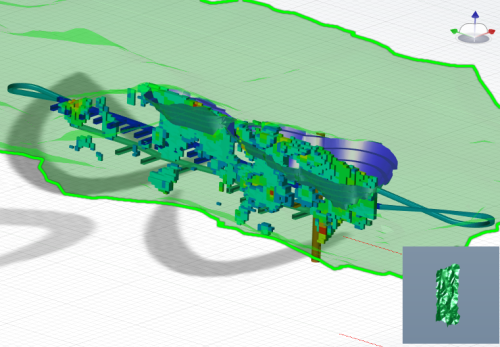
Use 3DVIA Composer to create a Composer file. Import the VRML files (.wrl extension) created by Surpac and create the 3D content with views, timelines and other features to satisfy your communication objectives.
To display the Composer content in Word, Excel or PowerPoint, the Developer tab on the ribbon must be displayed. Follow these steps to display the Developer tab on the ribbon:
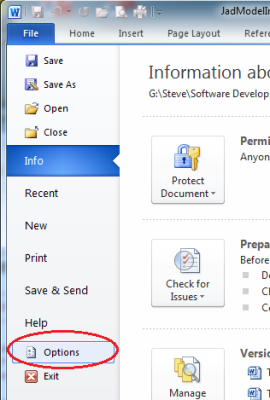
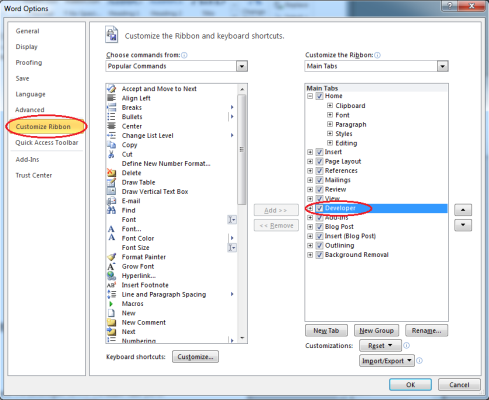
The images below are for Microsoft Word. There are only subtle differences when performing the same task in Excel and PowerPoint.
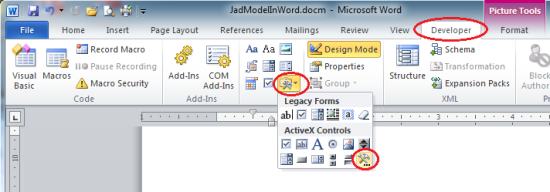
Choose the Developer tab, and then click the Legacy Tools button. Then click the More Controls button to display the More Controls form.
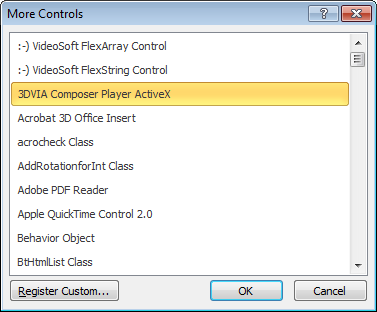
On the More Controls form, choose the 3DVIA Composer Player ActiveX control to add a new control to the document, spreadsheet or PowerPoint slide.
In Excel and PowerPoint you must define a rectangular region to represent the ActiveX control to insert into the document. Word creates a rectangular region whose size you can adjust to suit your objectives.
Right-click in the rectangle that represents the ActiveX control area to display the context menu, and then choose 3DVIA Composer Player ActiveX Object > Properties… to display the 3DVIA Composer Player ActiveX Properties form.
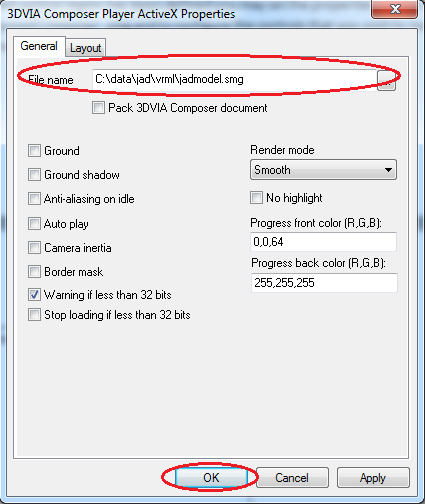
In the File name box, choose the .smg file to display in the document, and choose OK to display the .smg file in the control area.
You can configure other properties for the ActiveX control using the controls on the 3DVIA Composer Player ActiveX Properties form to present the content in a manner that suits your needs. Experiment with the different options to achieve your communication objectives.
You can set other properties for this control to configure the behaviour that you wish to make accessible to the user.
There are two options for displaying the Composer .smg file. These are:
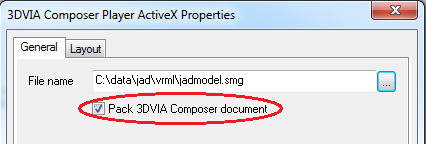
Leave the Pack 3DVIA Composer document check box cleared. This option keeps a reference to the .smg file so that any changes to the .smg file will automatically appear the next time the Word document, Excel spreadsheet or PowerPoint slide show is opened. If you choose this option, you must distribute the .smg file to your audience and the audience must ensure the .smg file is in the same directory as the document that references the .smg file.
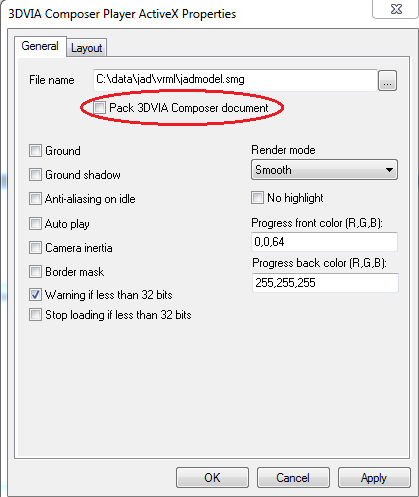
Select the Pack 3DVIA Composer document check box to pack the .smg file into the Word document, Excel spreadsheet or PowerPoint slide show. If you choose this option, you must remember to reload the .smg file into the document if it is changed. This option simplifies the experience for your audience because you only have to send them the Word document, Excel spreadsheet, or PowerPoint slide show
The process of adding and setting properties for the ActiveX control turns on Design Mode in Word and Excel. The ActiveX control does not become active until Design Mode is deactivated or, in the case of PowerPoint, you enter presentation mode.
To show that Design Mode is active, the button indicating Design mode is highlighted.
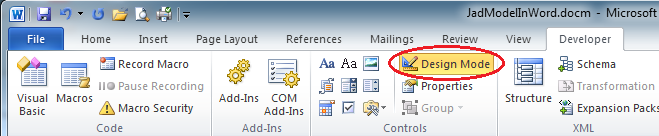
Click the Design Mode button to deactivate Design mode.
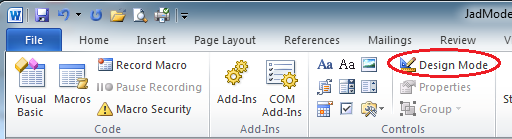
When Design Mode is not active, Microsoft Word or Excel display the .smg file in the ActiveX control and allow you to interact with it using the capabilities you have enabled in the .smg file. PowerPoint only allows you to interact with the .smg file displayed in the ActiveX control when showing the slide in presentation mode.
Similarly, for an Excel spreadsheet, or PowerPoint slide, make sure you save it as a macro-enabled file.
Remember that the audience must have the free 3DVIA Composer Player installed to successfully interact with the content. Include instructions and links to the free Player installer in your communication document to make this easy for the user.
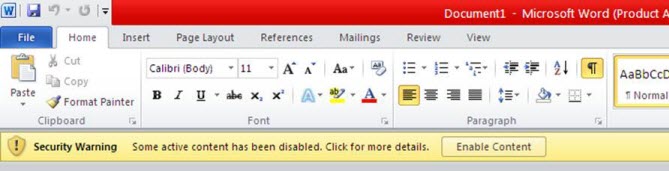
Note: The default security settings for Microsoft Word, Excel and PowerPoint will disable the ActiveX control. To enable the ActiveX control, the audience might need to click the Enable Content button that is displayed.