


Licence Manager Window
In Licence Manager, the main window provides you with information about your tokens in a way that is easy for you to access and see. In this window, you can see whether tokens are working correctly, and whether the Licence Manager service is installed and running correctly.
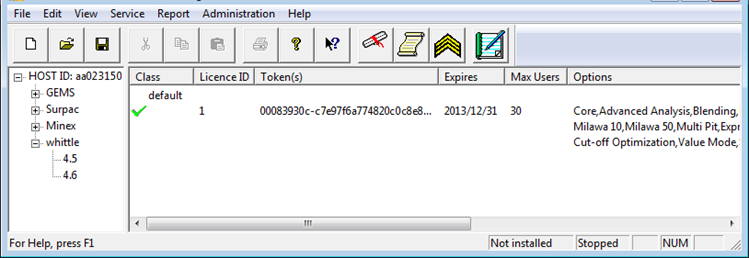
Menu Bar
The menu bar contains all the functions available, sorted into appropriate menus. You use the menu functions to manage your tokens.
Toolbar
The Toolbar makes available the most common tasks as buttons.
Left Pane
The left pane shows the products for which you have tokens. It shows the host ID or the dongle number with a +/- icon to expand or collapse. You select:
- the + icon to expand a host, that is dongle, to show the programs for which you have tokens
- the + icon to expand a program to show the versions of the program to which the tokens apply
- a version to show, in the right pane, the tokens available for the selected version
Right Pane
The right pane shows the list of tokens that you have entered into the Licence Manager, and shows important information for each token.The information in this pane includes:
| Column | Description |
|---|---|
| Class |
The class name. Token files can have one or more classes of licences. A licence class is the name of a group of modules of functionality for a GEOVIA program. Users request and receive a particular licence class from Licence Manager, and they can then use the functionality that the modules of that class provide. Below the class name is the token status:
|
| Licence ID |
The licence identification. The licence identification provides a way for a GEOVIA program to reference the tokens you have with GEOVIA's internal distribution database. It is also used for easily updating tokens and can be used to create "Update" tokens. |
| Token(s) |
The token numbers that you have currently entered into the Licence Manager. Both the master tokens and update tokens appear in the list. The master token is always the top token displayed for any licence ID, and the update tokens are below it. For each licence ID, you can have only one master token, but several update tokens can exist. Update tokens add modules to an existing master token for a short period of time, for example, a trial period to see if you want to buy the licence. Permanent changes in your licence are granted through a new master token. For more information on update tokens, see UDT file in the glossary. |
| Expires |
The expiry date for the token.
|
| Max Users |
The maximum number of users who can use the licences provided by the token at the same time. |
| Options |
The licence modules made available by the token number. The information shows the complete list of modules that are available in the master token and any update tokens. If you do not see modules that you have purchased, contact your local GEOVIA support office. |
 indicates that the licence is enabled.
 indicates that the licence is disabled.
  Tip: To ensure that users have continued use of their
 Status bar
The status bar is located in the lower right corner and has two important indicators. The first displays Not installed or Installed to indicate the state of the Licence Manager service. The second indicator displays Stopped or Running to indicate whether the Licence Manager service is running or not. The Licence Manager service can only respond to licence requests if it is installed and running.
See also: