


Task: Import a block model from a .csv file
- Choose Block model > New/Open.
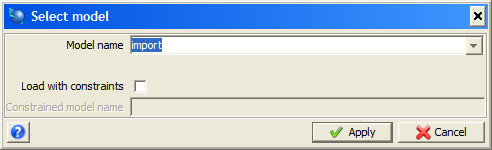
- Type the name for the new block model, and then click Apply.
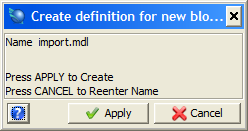
- Click Apply.
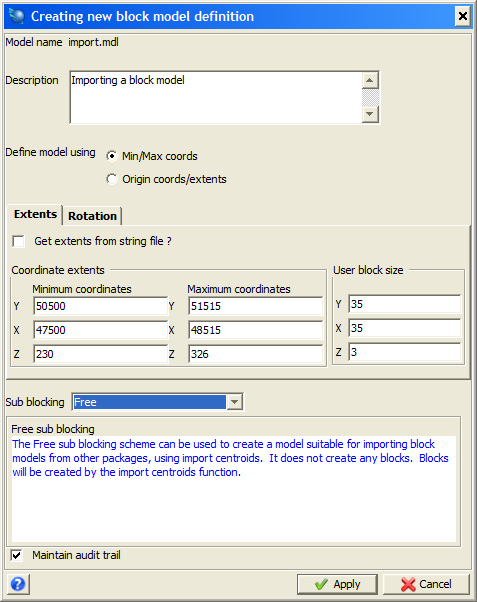
- In the Coordinate extents set the minimum and maximum values to the dimensions of the original model.
- In the User block size type the dimensions of the parent blocks of the original model.
- In the Sub blocking box select Free.
- Click Apply.
- Choose Attributes > New.
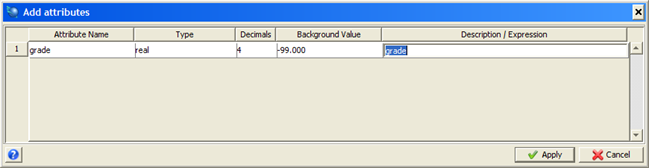
- Enter the details for the grade attribute as in the form below, and then click Apply.
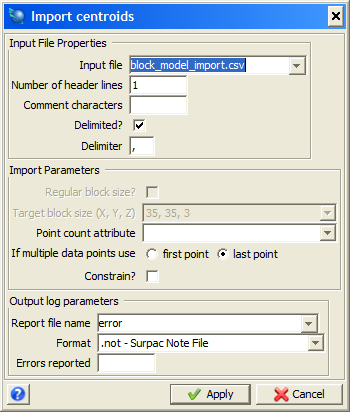
- Choose Block model > Import > Text file.
- In the Input File box, navigate to the text file you want to import.
- Enter the Number of header lines as 1, select Delimited? and set the Delimiter to a comma ",".
- Complete the remainder of the form as shown, and then click Apply.
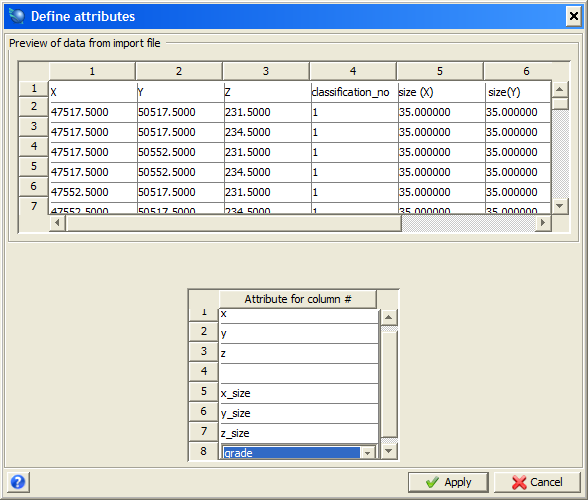
- Use Attribute for column # to match the attributes of the block model to the column number, and then click Apply.
- Choose Block model > Save to save the model.
The Select model form is displayed.
The Creating Definition for new block model form is displayed.
The Creating new block model definition form is displayed.
The  icon is displayed below the Message window with the name you have chosen for your model.
The Add attributes form is displayed.
The Import centroids form is displayed.
The Define attributes form is displayed.
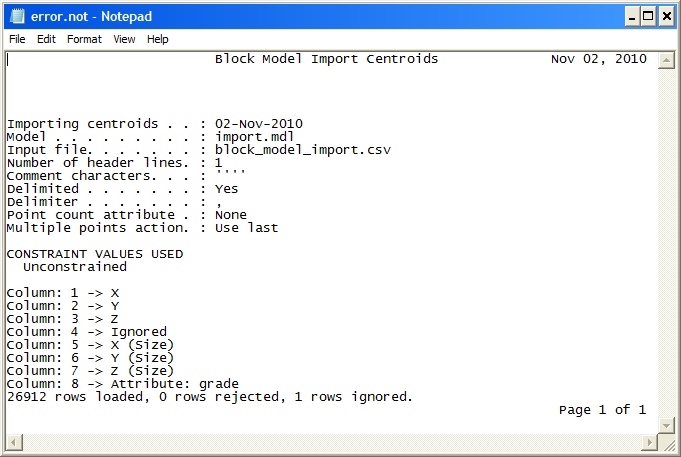
A report showing the results of the import is displayed.
An .fbm file is created.
 Note: To see all of the steps performed in this task run _15_import_block_model.tcl. You will need to click Apply on any forms presented.
 Tip: It is good practice to compare volumes, grades and metal between your parent block model and your new model to ensure it has imported correctly.