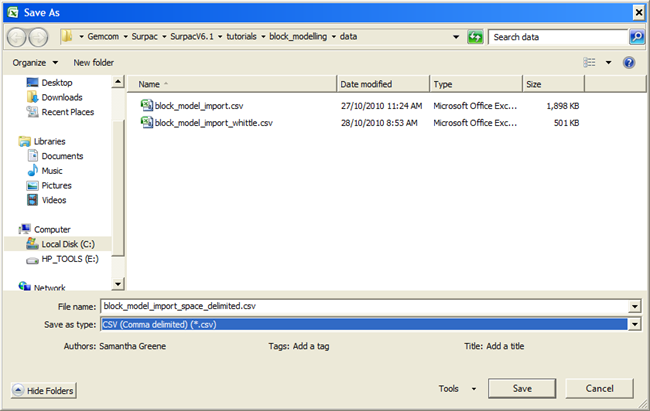
Task: Create a .csv file from a text file using Microsoft Excel
- Open Microsoft Excel.
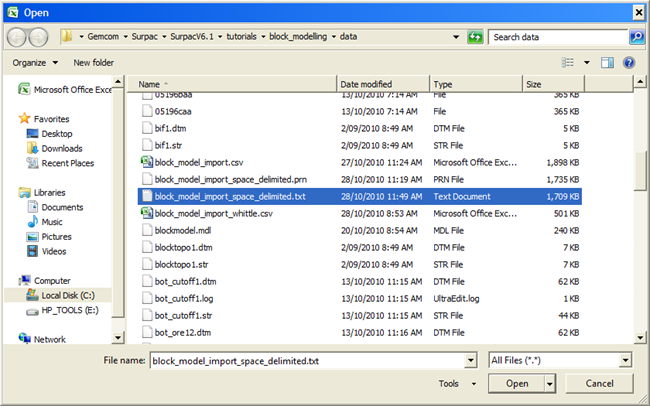
- Click the Office Button, and choose Open (or if your version of Excel has a File menu, choose File > Open).
- Choose All Files (*.*) and navigate to the text file.
- Click Open.
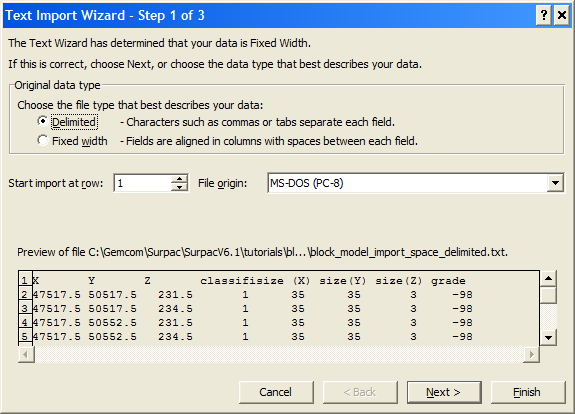
- In Original data type select Delimited.
- Click Next.
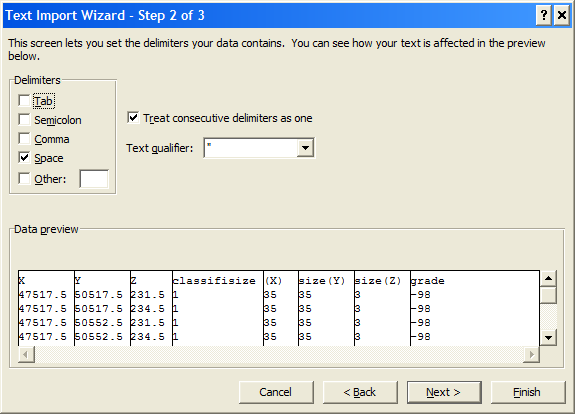
- In Delimiters select the delimiter type for your data.
- Select Treat consecutive delimiters as one.
- Click Finish.
- Click the Office Button menu (or the File menu if your version of Excel has a File menu), and choose Save As > Other Formats.
- In the Save as type box select CSV (Comma delimited)(*.csv).
- Enter a file name and click Save.
The Open form is displayed.
The Text Import Wizard form is displayed.
The Save As form is displayed.