


Field Amalgamation
FIELD AMALGAMATION allows you to merge data from several different files into a control file. The control file may be created by adding, subtracting multiplying, dividing or transferring data from fields Z D1...D100 from up to eight string files, onto fields Z D1...D100 on coincident points in the control file.
To run this function: Choose File tools > Combine/Split file options > Merge fields from multiple files, or...
 Note: It is not necessary for the points to be on a regular grid.
This function is only suitable for transferring values from one discrete point to another discrete point based on proximity of the two points.
It is not suitable for transferring values on a segment by segment basis, although this will work provided some of the segments share common points.
Note: It is not necessary for the points to be on a regular grid.
This function is only suitable for transferring values from one discrete point to another discrete point based on proximity of the two points.
It is not suitable for transferring values on a segment by segment basis, although this will work provided some of the segments share common points.
For mathematical operations (i.e. + - * /) only fields with numeric data can be used. For a transfer (=) operation alphanumeric fields can be used.
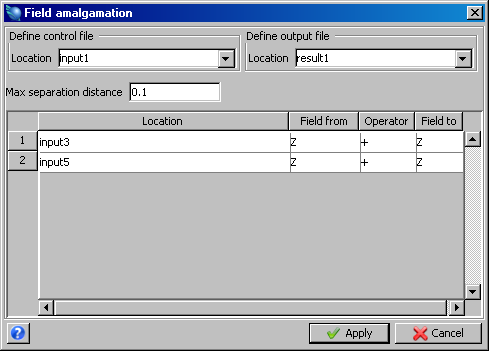
Control File
Define the control file by entering the Location.
The control file must be present and contain at least one point. An empty control file will produce an empty output file. It is often not important which file is used as the control file. String numbers are ignored in the control file and all other files.
Output File
Enter the Location of resultant data output file. The data contained in the control file is written to the output file after all the operations have been carried out.
Max separation distance
Operations are carried out on coincident points. Points are considered coincident if their three dimensional separation is less than the defined distance. This value defaults to 0.005.
Enter the Maximum separation distance.
If the field amalgamation involves the Z field, only a two dimensional check (X and Y) is made. If the entered distance is too large, the results will be unreliable as the first acceptable point in the amalgamating files will operate on the point in the control file, not the closest one.
Input Files
Enter the Location for each file.
Up to eight files may be amalgamated in a single run. By repeatedly running the option, infinite operations can be performed. A file may be called more than once if more than one field is required.
If any of the files to be amalgamated are missing or empty, they are ignored and the next file is retrieved.
From Field
This is the field the data is taken from in the amalgamating file.
If a field is requested from the description field and this field is not present (i.e. is empty), or is non-existent (i.e. request D6 when only have D1 to D4 present) then the point is removed from the control file and will therefore NOT be present in the output file.
Operation
The operations are add, subtract, multiply, divide and transfer (=).
The order of operation is as shown in the form:
- From field, Operates on, To field
Note:If a point causes a divide by zero error then this will cause the removal of the point from the control file.
To Field
This is the field that is operated on, and is also the field the result is written to in the control file. You may successfully write a field into the description field, beyond the last field present in the control file description fields. For example, if fields D1 to D3 are present in the control file, the Z field from an amalgamation file can be transferred to D5. An empty D4 field will be created in the control file.
Result
The resultant data present in the control file after all the operations have been carried out is written to the output file. Only points that are common to ALL the files will remain in the output file. Any points in the amalgamating files that are not within the separation distance of a point in the control file are ignored. Any points that are in the control file and are not present in ALL the other files are eliminated.
There are two common exceptions :
- The main exception is when performing a transfer (=) operation. If a control point is not present in the amalgamating files, the control point remains and a blank description field is inserted.
- The other exception results from empty or non existent files.