


Surpac™ 64-bit
Surpac 64-bit allows you to process larger data sets. Surpac 64-bit is also valuable if you are running a 64-bit version of Microsoft™ Office, and do not want to downgrade to a 32-bit version.
Installation instructions
To install Surpac x64:
- Run the Surpac installer.
- Click Install 64-bit version.
- Click the edition of Surpac that you want to install.
- Follow the prompts on the installation wizard.
Links to the editions of Surpac in 64-bit versions are displayed on the installation page.
The GEOVIA Surpac Installation (x64) Setup wizard appears.
Tcl 8.5
Surpac 64-bit uses Tcl 8.5.12 for scripting. Conversely, Surpac 32-bit continues to use Tcl 8.3.
Surpac 64-bit includes Tcl Windows API (TWAPI), rather than tcom, to interact with COM interfaces such as Microsoft Office applications. Tcom does not work on 64-bit Windows.
 Note: For Surpac 32-bit, tcom libraries continue to work.
To convert a script from tcom to TWAPI:
set application [::tcom::ref createobject Excel.Application]
becomes
set application [twapi::comobj Excel.Application]
An important difference between tcom and TWAPI is that TWAPI requires the script writer to explicitly destroy all the objects created, for example:
set application [twapi::comobj Excel.Application]
        $application Visible 0
        set workbooks [$application Workbooks]
        ...
        $workbooks -destroy
        $application Quit
        $application -destroy
Note: If you are running Surpac 64-bit, and some Tcl commands are returning slightly different numerical results than Surpac 32-bit, it might be because of a difference in the way Tcl 8.3 and 8.5 calculate floating point numbers. You can set a 32-bit/64-bit compatibility setting to make Surpac 64-bit calculate floating point numbers in the same way as Surpac 32-bit.
Unsupported features
The following features are not supported in Surpac 64-bit:
- tcom libraries in TCL scripting
- connection to Wintab digitisers
- communication with Leica TPS 1100 survey data recorders (using Geocom)
- the Microstation DGN reader/writer data plug-in
- connection to acQuire databases
- MineSched
System requirements
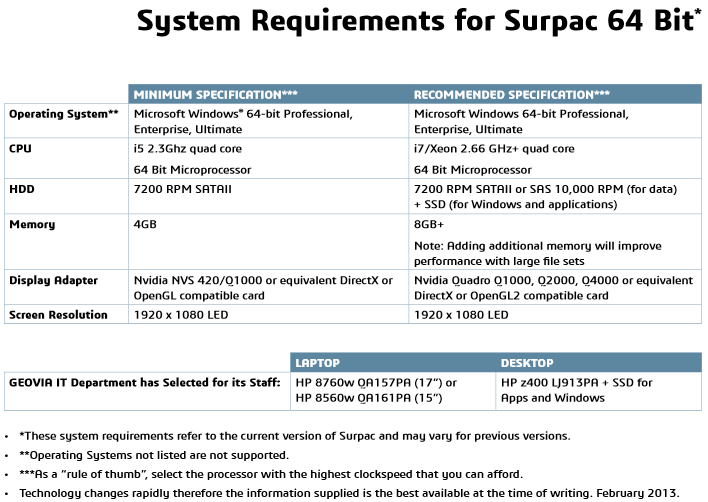
The following table outlines the minimum and recommended systems specifications for running Surpac x64.
Compatibility issues
If you have Surpac 64-bit, and want to use a Microsoft Access (.accdb) database with Surpac, use Microsoft Office 64-bit. If you have Surpac 32-bit, use Office 32-bit. That is, you must have the same 'bitness' of Surpac and of Office.
If the bitness of Surpac and Office do not match, a compatible database driver will not be installed.
Note: The exception to this bitness rule is that you can successfully use Surpac 32-bit with an .mdb database, regardless of whether Office is 32-bit or 64-bit.
Creating or opening an .accdb file
If you create a new database in Surpac, choosing one of the Access database types, and you do not have the correct driver installed, Surpac displays a form that guides you through the process to install the components you need. The following table shows the process.
| Surpac 32-bit | Surpac 64-bit | |
|---|---|---|
| 32-bit Office | No action | Uninstall Office, and install OLEDB |
| 64-bit Office | Uninstall Office, and install OLEDB | No action |
| No Office or Access | Install OLEDB | Install OLEDB |
Similarly, if you try to open a .ddb file in Surpac that is mapped to an Access file, and there is a driver compatibility issue, Surpac displays the same form.
Note: A database of type: access, access 2007, or access 2010, has the .accdb file format. A database of type: access97, or access2000, has the .mdb file format.
ODBC
If, in Surpac, you are using open database connectivity (ODBC) to connect to an Access database, and there is a bitness compatibility issue, the connection to the database fails.
If you wish, you can uninstall Office, and then install OLEDB by running the Surpac installation again and choosing to install OLEDB Component on the Custom Setup page.
Note: When you install OLEDB Components, you install the Microsoft Access Database Engine 2010 Redistributable, which also installs the Access ODBC driver.