


Drafting mode
You can use Drafting mode to create points at a specific angle or distance from another point or line.
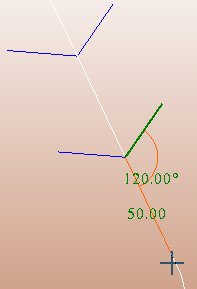
Starting Drafting mode:
- Create a new point, for example using Create > Digitise > New point.
- Do one of the following:
- Press 5.
- Right-click in Graphics and, on the context menu, choose Drafting.
- On the Digitise toolbar, click the mode button and choose Drafting.
Tool properties pane
When you start Drafting mode, the Tool properties pane is displayed on the left. Using the options in this pane, you can make new points 'snap to' a specific interval, for example the nearest 5 degree angle or the nearest 10 units of distance.
| option | description |
|---|---|
| Angle snap |
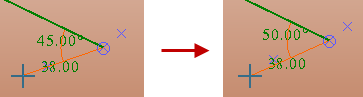
The number of decimal degrees of change in the angle. For example, the following images show an Angle snap of 5.
|
| Distance snap | The number of units of distance of change for each snap point. |
| Offset snap |
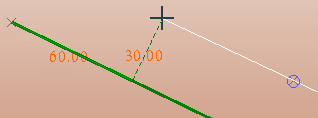
In Edge Follow mode, Offset snap is the distance you want between a line and the new point you will create. Offset snap has no effect unless you are in Edge Follow mode. The following image shows an Offset snap of 30.
|
Default settings
In Default settings (that is when you run the SETTINGS function) if you choose Graphics > Tool settings, you can set:
- the font size for the angle and distance
- line colours
- the reference line for angles to horizontal or vertical
Edge Follow mode
In Edge Follow mode, you can create a point or a line that follows an existing line. To start Edge follow mode, when you are in Drafting mode, hold down CTRL and click a line.
 Tip: Edge Follow mode is particularly useful in 2D planes mode. You can use it in 3D planes mode, but if you follow a line that is not exactly on the plane, the offset distance is the distance from the point where the line would intersect the plane, rather than the distance from the line itself.
Drafting on planes
When a plane is active, the displayed angles and distances are angles and distances on the active plane.
Status bar
When you are digitising, the Status bar shows the distance, bearing, and dip from the selected point to the location of the mouse pointer.
 Note: If you activate Edge Follow mode and, with a point selected, you select a line that is above or below the point, the dip becomes a value other than 0.

Note: The distance and angle are also displayed when you use the Move tool to move a point.