


File browser
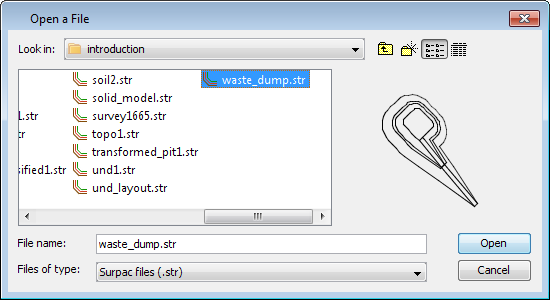
The file browser is used to browse directories for files to provide you an easy method for selecting files. The file browser is invoked on forms by selecting the standard browser icon which is attached to fields requiring file names, locations, or directories as input. When you are selecting a location name the ID part of the filename is automatically inserted into the associated ID range field on the calling form.
File Specification
Directly below the Files heading is the file specification input region. You can enter any valid file name specification including wildcard and special characters described below. You may enter more than one file specification by separating each one with a comma.
Valid wildcard characters are:
- ?, match any single character.
- *, match any string of zero or more characters
- [..], match any single character from the enclosed set. For example [a-z] would match any character in the inclusive range 'a' to 'z'. If the first character after the initial bracket is the exclamation '!' then the effect of the range is negated. For example [!m-n] would match all characters other than 'm' and 'n'.
Examples
| *.str,*.dtm | list all string and dtm files |
| ???100.str | list all string files that have a three character location with an ID number of 100 and an extension of .str |
| [d-g]*.str | list all string files that begin with the letters 'd', 'e', 'f', or 'g' . |
File Scroll Region
The region under the file specification area is known as the file scroll region. If your file names are too long to display in the region provided then a horizontal scroll bar is attached at the bottom of the region. If you have more files that can be listed in the region then a vertical scroll bar will be attached.
The highlighted file name is the currently selected file. To select another file simply click on its name once with the mouse. To accept the selected file and exit the file browser simply double click on the filename.
Directory Specification
Below the Directories heading is the current directory field. This is a display only field which contains the full path name of the selected directory.
Directory Scroll Region
The region under the current directory field is known as the directory scroll region. If your directory names are too long to display in the region provided then a horizontal scroll bar is attached at the bottom of the region. If you have more directories that can be listed is the region then a vertical scroll bar will be attached.
The highlighted directory name is the currently selected directory. To select another directory simply click on its name once with the mouse. This does not change the systems current working directory.
To move up one directory level select the '[move up directory]' text.
To refresh the directory select the '[refresh directory]' text. This is useful in a network situation when files have been copied into the currently selected directory by other users.
Current Drive
This input field is only present under DOS version of the software. This allows you to change your current drive by typing the drive letter or selecting the drive from the attached set browser.
Select Button
Choose Select to accept the currently selected file (or directory) and exit the file browser. Alternatively you can double click on the required file name to select it and exit the file browser.
Copy Button
Choose Copy to copy files. The currently selected file will become the default file to copy but this can be changed as required.
Rename Button
Choose Rename to rename files. The currently selected file will become the default file to rename but this can be changed as required.
Delete Button
Choose Delete to delete files. The currently selected file will become the default file to delete but this can be changed if required.
View Header Button
Choose View Hdr to display the first line of the currently selected file in the message window.
Edit Button
Choose Edit to edit the currently selected file. This will invoke the text editor that you have specified with the text_editor specifier in the defaults file.
Cancel Button
Choose Cancel to exit the File Browser without selecting a file.