


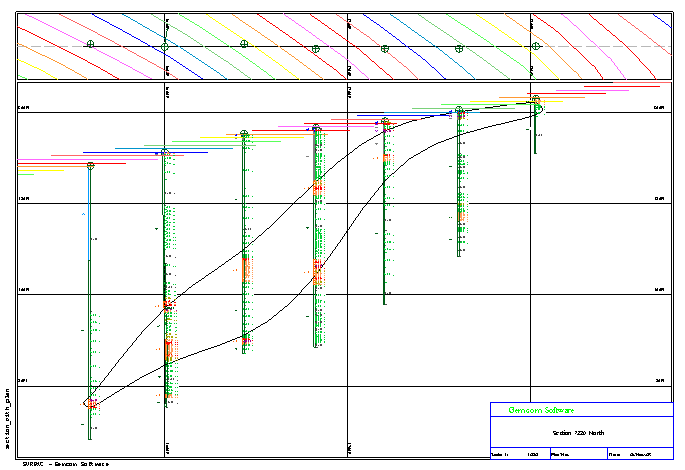
Example: Create a section plot with a plan strip
- Drag and drop section_7320_north.swa to display the data as in the previous task.
- Click the Autoplot icon
 .
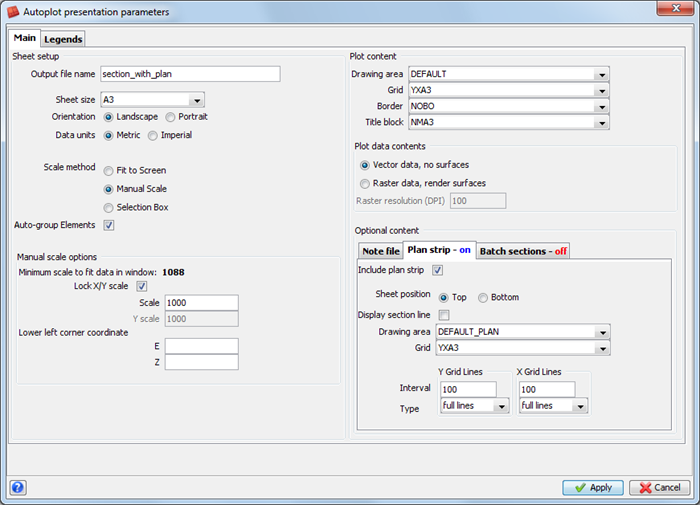
. - Enter the information as shown, and click Apply.
- Enter the information as shown, and click Apply.
- Press F1.
- Left click and drag in Graphics to move the box.
- Press F2.
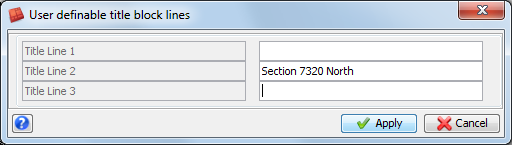
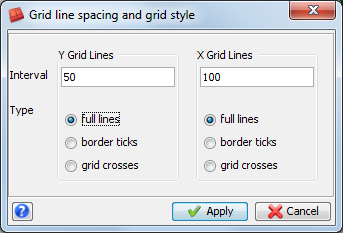
- Enter the information as shown, and click Apply.
- Choose File > Close.
- Click Reset graphics
 .
.
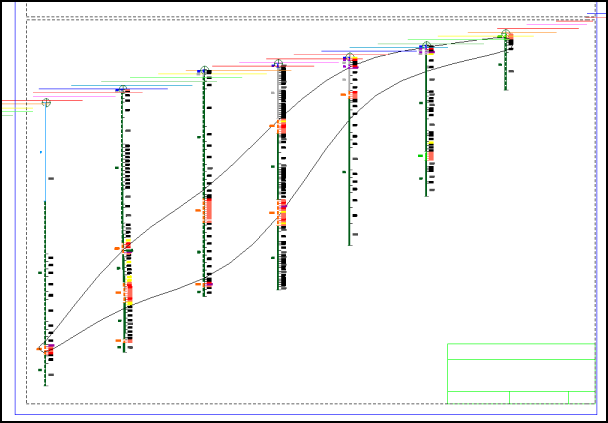
The file section_with_plan.dwf is created and displayed in the Plot Preview window.
 Note: To see all of the steps performed in this section, run _01c_autoplot_section_plan_strip.tcl. You will need to click
Apply on any forms presented.
Note: To see all of the steps performed in this section, run _01c_autoplot_section_plan_strip.tcl. You will need to click
Apply on any forms presented.