


View a blast hole
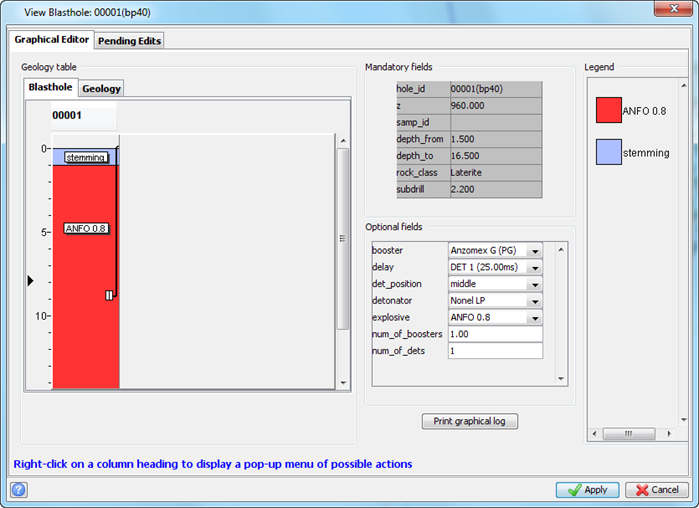
You can use this function to see the charge intervals of a single blast hole, and the charging details of the hole.
Prerequisites: A blast database is connected. At least one blast hole is displayed using the DISPLAY DRILLHOLES function. That is, the blast hole or holes are loaded from the database not from a string file.
To run this function: Choose Design > Blast design > Display > View a blast hole, or
Fields on the View Blasthole form
| Field | Description |
|---|---|
| Graphical Editor tab | |
| Blasthole [tab] |
Displays a graphical view of the intervals in the selected blast hole. In each interval, the name of the explosive or stemming for that interval is displayed. You can select the name to see more details of the explosive or stemming in the Optional fields text boxes.
|
| Geology [tab] |
Displays a graphical view of the geological sample data and allows you to edit geological sample values. You specify the geological sample data using the Table, Field, and Add controls. This graphical view is useful when you are storing geological sample data (in addition to blast data) in the blast database. To edit geological sample values, click the interval sample, and type new values in the Optional fields section. |
| Mandatory fields | Displays values for the hole ID, elevation, sample ID, depth from, depth to, rock classification, and subdrill. These values are read-only. |
| Optional fields |
When you select the name of an explosive or stemming in an interval, this section displays more details about the interval including booster, delay, detonator position, detonator, explosive type, number of boosters and number of detonators. To edit the value of a field, type the value you want, or select the value you want from the list, and click Apply. |
| Print graphical log | Prints the graphical view, of the hole, that is displayed in the View Blasthole form. |
| Legend |
If colours are defined for any fields in the database, this section displays the colour legend.
|
| Table | The Table and Field drop-down lists display the data from a specific geological field on the Geology tab. These drop-down lists are useful when you are storing geological sample data (in addition to blast data) in the blast database. You can then edit the field values. The Table and Field drop-down lists are visible when you select the Geology tab. |
| Add | Adds a new column, to the Geology tab, that displays the values for the geological sample field you choose. The Add button is visible when you select the Geology tab. |
| Field | The Field list allows you to specify the field for geological sample data that you want to view or edit. The Field list is visible when you select the Geology tab. |
| Modify | Changes the geological sample field that is displayed under the Geology tab. The field changes to the one selected in the Field box. The Modify button is visible when you select the Geology tab. |
| Pending Edits tab | |
| [Pending Edits table] | If you have changed the value of any fields for the blast hole, but not yet clicked Apply, this table shows the changes. When you click Apply, the changes are made to the blast hole database, and they are removed from the Pending Edits list. |
 Tip: To make the graphical view display in colour, run
  Note: To define colours for database fields, run
Output
If you edited any intervals, you are prompted to save the changes to the database. If you choose Yes, the database is updated.