


Navigator
The Navigator works like Windows Explorer. Using the Navigator, you can manage your files and directories by creating new folders, cutting, copying, pasting, and deleting files and folders.
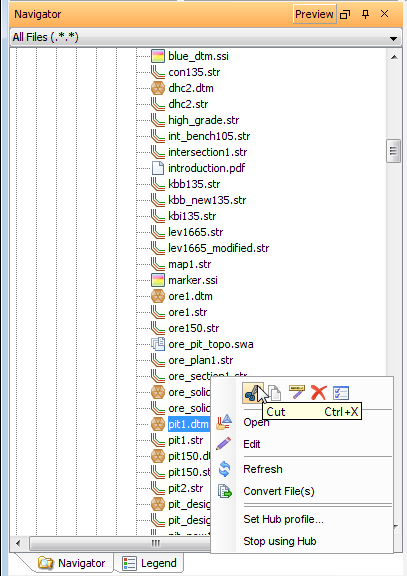
File operations
|
To: |
Right-click the file, and then select: |
|---|---|
| Open a file |
|
| Edit a file | Edit |
| Cut a file |
|
| Copy a file |
|
| Refresh the Navigator | Refresh |
| Convert a file to another format | Convert File(s) |
| Rename a file | Rename |
| Delete a file | Delete |
| View file information | Properties |
Folder operations
|
To: |
Right-click the folder, and then select: |
|---|---|
| Set as work directory | Set as work directory |
| Open in Windows Explorer | Open in Windows Explorer |
| Create a new folder | New Folder |
| Cut a folder |
|
| Copy a folder |
|
| Paste a file or a folder |
|
| Refresh the Navigator | Refresh |
| Rename a folder | Rename |
| Delete a folder | Delete |
| View folder information | Properties |