Mapping a database
Surpac database tree
The structure of the Surpac database is similar to the structure of any other database, except that the tables are split into mandatory
and optional tables. These folders represent a view of the
database and Surpac 'knows' only about the tables and fields that are
defined in the Surpac database. Every other object in the database you are mapping is ignored.
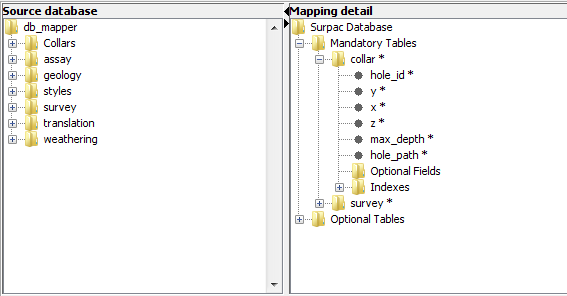
The mandatory tables required by Surpac are the collar and survey tables. Within the folders for these tables are a list of the
mandatory fields that are required for the table and two subfolders. The subfolders are for Optional Fields and Indexes. Within the Optional Fields subfolder, you can map to fields of the collar and survey tables that are not mandatory.
 Note: You must map any tables that have an asterisk (*) next
to their name. Any fields that have an asterisk next to their name are mandatory fields that you must either map to a stored field or leave as a calculated field. Only positional fields, like x, y, z, x_from, y_from, z_from, or hole_path can be calculated fields (Surpac uses hole_path to determine which algorithm to use for calculating hole position: 'linear', 'curved', or 'vertical').
Note: You must map any tables that have an asterisk (*) next
to their name. Any fields that have an asterisk next to their name are mandatory fields that you must either map to a stored field or leave as a calculated field. Only positional fields, like x, y, z, x_from, y_from, z_from, or hole_path can be calculated fields (Surpac uses hole_path to determine which algorithm to use for calculating hole position: 'linear', 'curved', or 'vertical').
The optional tables allow you to map any other tables in the database that you want to use in Surpac. There are five subfolders under the optional tables folder. The translation subfolder allows you to map a translation table that translates numeric codes. The styles subfolder allows you to map to a table that contains stored drawing styles. The Interval, Point, and Discrete tables allow you to map to data tables in the database.
Indexes
For geological database functions to work correctly, the indexes in the Indexes subfolders of Collar and Survey must be mapped from the source database to the .ddb file. When the hole_id and depth fields are mapped, these indexes are also mapped. Surpac requires these indexes to display and work with the data at a reasonable speed, and to ensure that there is a unique hole_id field for each drillhole.
You can also map other indexes that you want to be able to use within Surpac.
- Expand the Mandatory Tables folder in the Surpac Database pane.
- Drag the folder in the Source database pane to the matching folder in the Surpac Databasepane.
An arrow and the name of the folder in the Source database is appended to the name of the folder in the Surpac database.
The fields of the table that have the same name in the Source database and Surpac Database are automatically mapped.
- Expand the folder in the Source Database pane.
- Expand the collar or survey folder in the Surpac Database pane.
- For any field in the Surpac mandatory table that has an asterisk next to its name, drag the field from the Source database pane to the Surpac database pane.
An arrow and the name of the field in the Source database is appended to the name of the field in the Surpac database.
Any unmapped fields in the Source database appear in the Optional Fields folder of the Surpac Database.
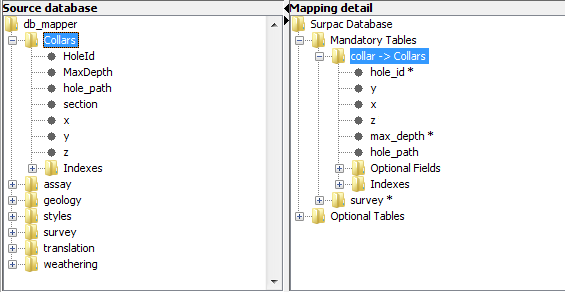
The following example demonstrates mapping the Collars table to the Surpac collar table. The fields x, y, and z do
not have an asterisk next to their names because they already have the same names in the Source database and the Surpac Database.
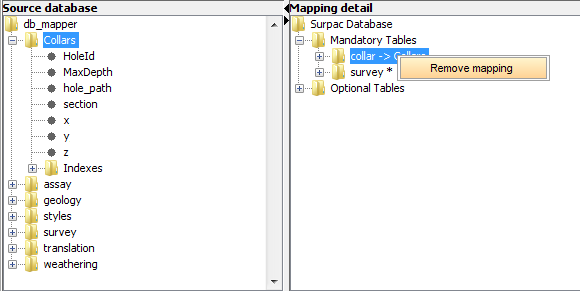
- In the Surpac Database pane, right-click the folder from which you want to remove the mapping.
- Choose Remove mapping.
The mapping is removed and the arrow and Source database table name are removed from the Surpac Database table name.
 Tip: Alternatively, you can follow the mapping procedure to make the correct table mapping. By doing so, you will overwrite the current mapping.
- In the Surpac Database pane, expand the Mandatory Tables folder, and then the collar or survey subfolder.
- In the Source database pane, expand the folder that contains the field you want to map.
- Drag the field from the Source database pane to the field in the Surpac Database pane.
An arrow and the name of the field in the Source database is appended to the name of the field in the Surpac database.
Note: You can map a Source database field to a Surpac Database mandatory field only if the database field is contained in the table that has been mapped to the mandatory table. For example, if you mapped the 'mycollar' table of the Source database to the collar table of the Surpac Database, fields in tables other than the 'mycollar' table cannot be mapped to the fields of the collar table.
- In the Surpac Database pane, right-click the field from which you want to remove the mapping.
- Choose Remove mapping.
The mapping is removed and the arrow and Source database field name are removed from the Surpac Database field name. If the field was mandatory, it will again have an asterisk next to the field name.
Tip: Alternatively, you can follow the mapping procedure to make the correct field mapping. By doing so, you will overwrite the current mapping.
- In the Surpac Database pane, expand the collar or survey folder.
- In the Source database pane, expand the table that contains the field you want to map.
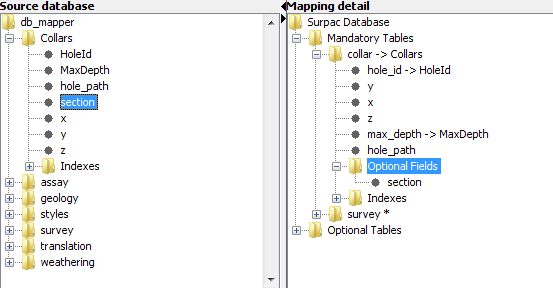
- Drag the field from the Source database pane to the Optional Fields subfolder in the Surpac Database pane.
The field is mapped and is listed under the Optional Fields subfolder.
- In the Surpac Database pane, right-click on the field you want to rename.
- Choose Rename.
The Rename a field or table form appears.
- Type the new name.
- Click Rename.
The field is renamed in the Surpac Database. An arrow and the name of the Source database field are appended to the new name.
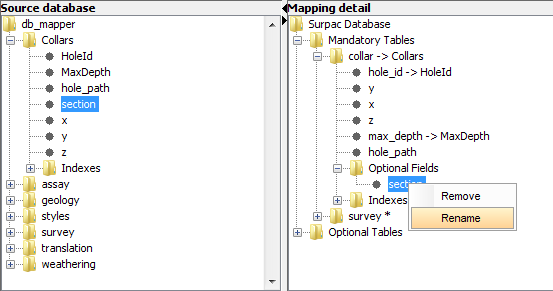
Note: The name of the
field in the Source database is not changed.
Note: The
translation table in the Surpac Database must be mapped for you to add a virtual field.
- In the Surpac Database pane, under the table folder you want to add the field to, right-click the Optional Fields folder.
- Choose Add.
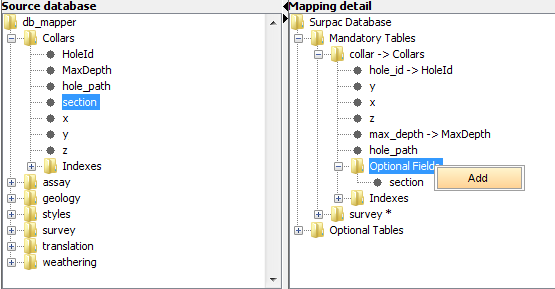
The Add a new field form appears.
- Type the name for the new field.
- Click Add.
The new field is added to the list of fields in the Optional Fields folder.
- Fill in the validation fields in the Fields and index information section.
- In Field type, select the type of data that is stored in the field.
- If you want to allow null values in the field, select Nulls allowed. If you don't want to allow null values for the field, clear the Nulls allowed check box.
- In Length, enter the maximum number of characters that can be viewed or stored in the field.
- In Case, select the case that the values for the field are stored in.
Note: Case is available only if you selected character or memo for the Field type.
- In Valid values, type the values that can be entered into the field.
Note: Valid values is available only if character is selected for the Field type.
- In No decimals, enter the number of decimal places that can be stored in the field.
Note: No decimals is available only if real is selected for the Field type.
- In Low bound, enter the lowest value that can be viewed or entered in the field.
Note: Low bound is available only if real or integer is selected for the Field type.
- In High bound, enter the highest number that can be viewed or entered for the field.
Note: High bound is available only if real or integer is selected for the Field type.
- In the Surpac Database pane, right-click the field that you want to remove.
- Choose Remove.
The field is removed.
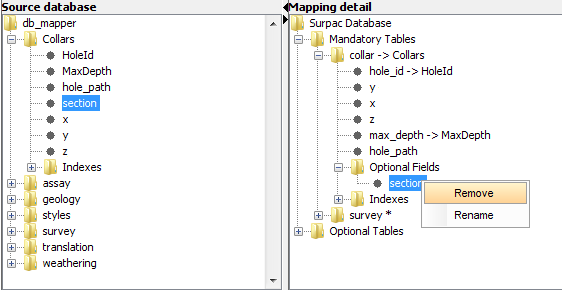
- In the Surpac Database pane, click the field.
The validation options you can use for the field are displayed on in the Field and index information section of the Map the database form, below the Surpac Database pane. The options are explained in the overview.
- Select the validation parameters you want to apply to the database.
Note: The validation parameters affect only what you can view and enter into the database using Surpac. They do not change the fields in the source database.
- Drag the folder from the Source database pane to the Interval Tables, Point Tables, or Discrete Tables folder in the Surpac database pane.
The table is mapped in a new folder under the table type you selected. The new table contains the mandatory Surpac field names and two subfolders for the optional fields and indexes. You must map the fields in your database table to the mandatory fields. This process is the same as mapping the mandatory Surpac tables.
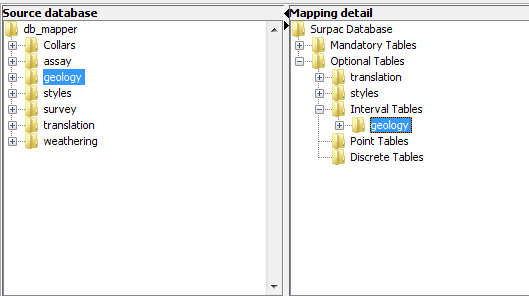
Note: Usually, for an interval table, the field samp_id is specified as a mandatory field. However you do not need to map this field if your interval table is a geology table. That is, it does not contain assay or numeric field types.
- In the Surpac Database pane, right-click the table you want to remove.
- Choose Remove.
The table is removed.
- In the Surpac Database pane, right-click the table you want to rename.
- Choose Rename.
The Rename a field or table form appears.
- Type the new name.
- Click Rename.
The table name is changed.
Note: The name of the table in the Source
database is not changed.



 Mapping a database table to a Surpac mandatory table