

Stereoscopic 3D visualisation
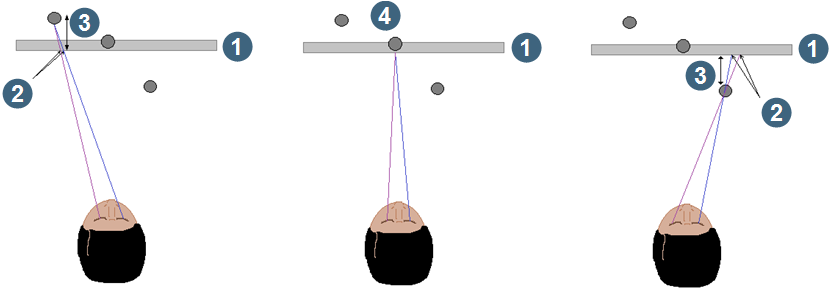
Stereoscopic 3D visualisations are achieved by presenting two images to a viewer. Each image is slightly offset, and filtered using appropriate hardware, presenting a different image to each eye. This gives the perception of depth.
|
||
| Image appears behind the face of the display | Image appears at the face of the display | Image appears in front of the face of the display |
|
2.Image separation 3. Perceived depth 4. Perceived depth is neutral |
||
To make stereoscopic 3D visualisations available in Surpac you need:
- a 3D capable monitor, or television, and glasses
- a 3D capable NVIDIA graphics card, connected using Displayport or HDMI
- up-to-date graphics drivers that are configured to make stereoscopic 3D available
To select stereoscopic 3D mode in Surpac you need to modify your preferences on the Settings form. In the Graphics folder, in the Hardware settings node, there are two options available:
- Stereo 3D - makes 3D visualisation available.
- Automatically adjust depth - automatically adjusts the depth of the image when you zoom in and out in Graphics.
When Stereoscopic 3D mode is active, the following controls are available:
| Control | Description |
|---|---|
| 3D On | Enables and disables stereoscopic 3D viewing. 3D is on by default if you have selected Stereo 3D in the Settings form. 3D is off by default if you have cleared Stereo 3D in the Settings form. Note: 3D viewing is disabled automatically, and 2D mode selected, when you use a function that requires an orthographic view. After you have finished using the function, 3D remains off until you select it again using this control. Note: 3D viewing is disabled automatically, and 2D mode selected, when you use a function that requires an orthographic view. After you have finished using the function, 3D remains off until you select it again using this control. |
| 3D Width | Determines the separation distance between the two images. The ideal value for the width changes depending on the viewing distance, screen size, and monitor refresh rates. |
| 3D Depth | Determines the point of focus for the data in Graphics. Backward sets the data to appear behind the screen, Forward sets the data to appear in front of the screen.Note: The Forward view can lose 3D effect when you are viewing large datasets. |