Mine blocks graphically
You can use this function to find out quickly which blocks you could mine in a scheduling period, while not exceeding tonnage and mass limitations, and achieving a target grade (or other attribute value).
 Note: However, BM GRAPHICS MINE BLOCKS does not take account of minimum slope angle for a pit, or any other practical mining limitations.
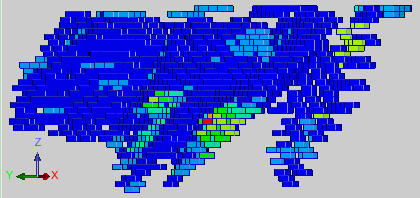
Prerequisites: A block model is open and displayed in Graphics. For this function to be useful, apply a block model constraint to show blocks that have not yet been mined, and then colour the block by an attribute of interest such as a grade attribute.
To run this function: Choose Block model > Block model > Mine blocks graphically, or
Fields on the Select Mining Attributes form
You use the Select Mining Attributes form to define how often the Mining Block Results form appears, to specify target volume, mass, and grade (or other attribute value), and to specify the names of the constraint files to create.
When you click Apply, you are prompted to select the blocks to mine in Graphics. At any time, you can press ESC to display the Mining Block Results form.
When you click a block in Graphics, the block appears transparent to show that you have selected it.
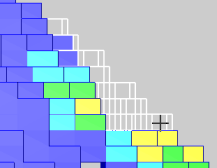
 Tip: You can also press F1 to start Viewer mode in which you can zoom, pan, and rotate the block model. Viewer mode helps you see the specific blocks you want so you can click them. Press ESC to exit Viewer mode.
Fields on the Mining Block Results form
| Field | Description |
|---|---|
| Selection | |
| Volume | The total volume of the blocks you have selected since the last time you click Accept. |
| Tonnage | The total tonnage of the blocks you have selected since the last time you click Accept. Tonnage is volume multiplied by SG Attribute. |
| Cumulative | |
| Volume | The total volume of the blocks you have selected since you started running BM GRAPHICS MINE BLOCKS. |
| Tonnage | The total tonnage of the blocks you have selected since you started running BM GRAPHICS MINE BLOCKS. |
| Target | |
| Volume | The target volume that you entered on the Select Mining Attributes form. |
| Tonnage | The target tonnage that you entered on the Select Mining Attributes form. |
| Attributes | |
| Value Name | Each row shows the name of an attribute that you chose to report on. |
| Total Value | The total value for the attribute for all the blocks you have selected since you started running BM GRAPHICS MINE BLOCKS. Typically Total Value is the average grade, but it depends on what you entered in the attribute table in the Select Mining Attributes form. |
| Selection Value | The total value for the attribute for all the blocks you have selected since the last time you click Accept. |
| Cumulative Volume/Tonnage |
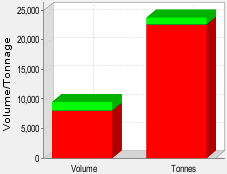
A chart that shows the cumulative volume and tonnage you have selected since you started running BM GRAPHICS MINE BLOCKS. If each column displays red (on target) and a small amount of green (less than the target), it is an ideal situation where the values are close to, but not greater than, the volume and mass limitations. Usually, this situation indicates that the processing plant and mining equipment would be fully used, instead of overused or underused.
|
| Attribute Values |
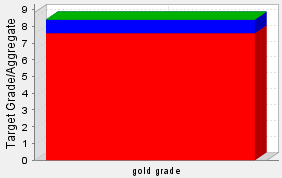
A chart that shows the cumulative average or aggregate values (depending on the settings you chose) for the attribute or attributes of interest. These values are calculated since the last time you started running BM GRAPHICS MINE BLOCKS.
|
| Accept | Saves the values for the blocks you have selected so far, and allows you to select more blocks so that you can add to the volume and tonnage to make them closer to the target values. |
| Reject | Clears all values for Mining Block Results so you can start again. |
| Finished | Saves the constraint files if you specified any constraint files on the Select Mining Attributes form. Also closes the Mining Block Results form. |
Output
If you specified the names of the two constraint files, the constraint files are created. The first constraint file (the Saved mined blocks to file) contains the blocks that you selected, that is the blocks that most closely meet your volume, tonnage, and grade limitations. The second constraint file contains the blocks that were displayed, and which you did not select.
For example, the following image shows the Saved mined blocks to constraint file for a period where the target volume is 10000 tonnes, and some blocks were selected using the training.mdl block model.