


Setting up Advanced Underground Mine Design
The Advanced Underground Design (AUD) module employs a structured planning process that applies best-practice planning definitions with manual and automated mine design tools. Data management and scenario modelling plays an integral part in the delivery of auditable, suitable, practical, and optimal strategies. This process delivers improvements in the planning process by minimising repetitive work and the application of standards and process mapping.
Installation
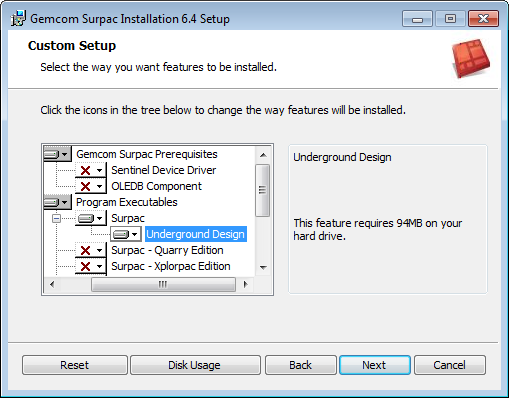
When you install Surpac from the Surpac installation disc, you can install Underground Design as an optional component.
Documentation
Two tutorials are provided:
- 'Massive' - in C:\Users\Public\GEOVIA\Surpac\<version>\demo_data\tutorials\advanced_underground_massive
- 'Tabular' - in C:\Users\Public\GEOVIA\Surpac\<version>\share\AUD\Tutorials\Tabular
Click the help button in any of the Advanced Underground Design forms to open specific help for that form.
Troubleshooting
If you want to select the AUD profile in Surpac but that profile is not listed:
- Find out which location your SSI_PROFILES logical is set to:
- Run SETTINGS.
- Look under Alias files > Translations.
- Look for the AUD profile in that folder.
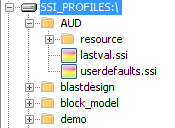
If you have installed more than one version of Surpac, the profile might be installed to a different location, in which case you can search your hard drive for it. The AUD profile is installed as part of the Advanced Underground Design software.
If you select the AUD profile but still experience difficulty starting AUD:
- Open your translate.mst file.
- Check that a C:\Users\Public\GEOVIA\Surpac\<version>\share\AUD folder exists on your computer.
- Make sure that the following line of text exists in translate.mst.
translate.mst is stored in your SSI_ETC folder. To find the location of your SSI_ETC folder, run SETTINGS, and look under Alias files > Translations.
Surpac installs Advanced Underground Design files to C:\Users\Public\GEOVIA\Surpac\<version>\share\AUD by default.
AUD2: C:\Users\Public\GEOVIA\Surpac\<version>\share/AUD/SourceData/
If you see the message Cannot open macro c:\aud2\sourcedata\startaud2.tcl:
- Create the folder c:\aud2\SourceData.
- Copy startaud2.tcl from c:\Users\Public\GEOVIA\Surpac\<version>\share\AUD\SourceData and paste it into c:\aud2\SourceData.
If AUD fails to start and you see an error message that a table is missing in the database:
- Contact GEOVIA support and paste the text of the error message. GEOVIA support might be able to supply a replacement database.